Eight sections
Identity, Hardware, Region, Noise Fingerprints, Fonts, Media Devices, WebRTC and Geolocation. Each one maps to what a page can read through the browser's own APIs, so you edit the value a site would see, not an abstraction of it.
Feature · Device settings
Every Profile carries its own fingerprint: eight sections you can edit by hand or fill from a template, plus a set of consistency checks that point out settings which contradict each other before the browser ever starts.
Use Agilelogin only with accounts, systems, and data you are authorized to access. Terms of Service
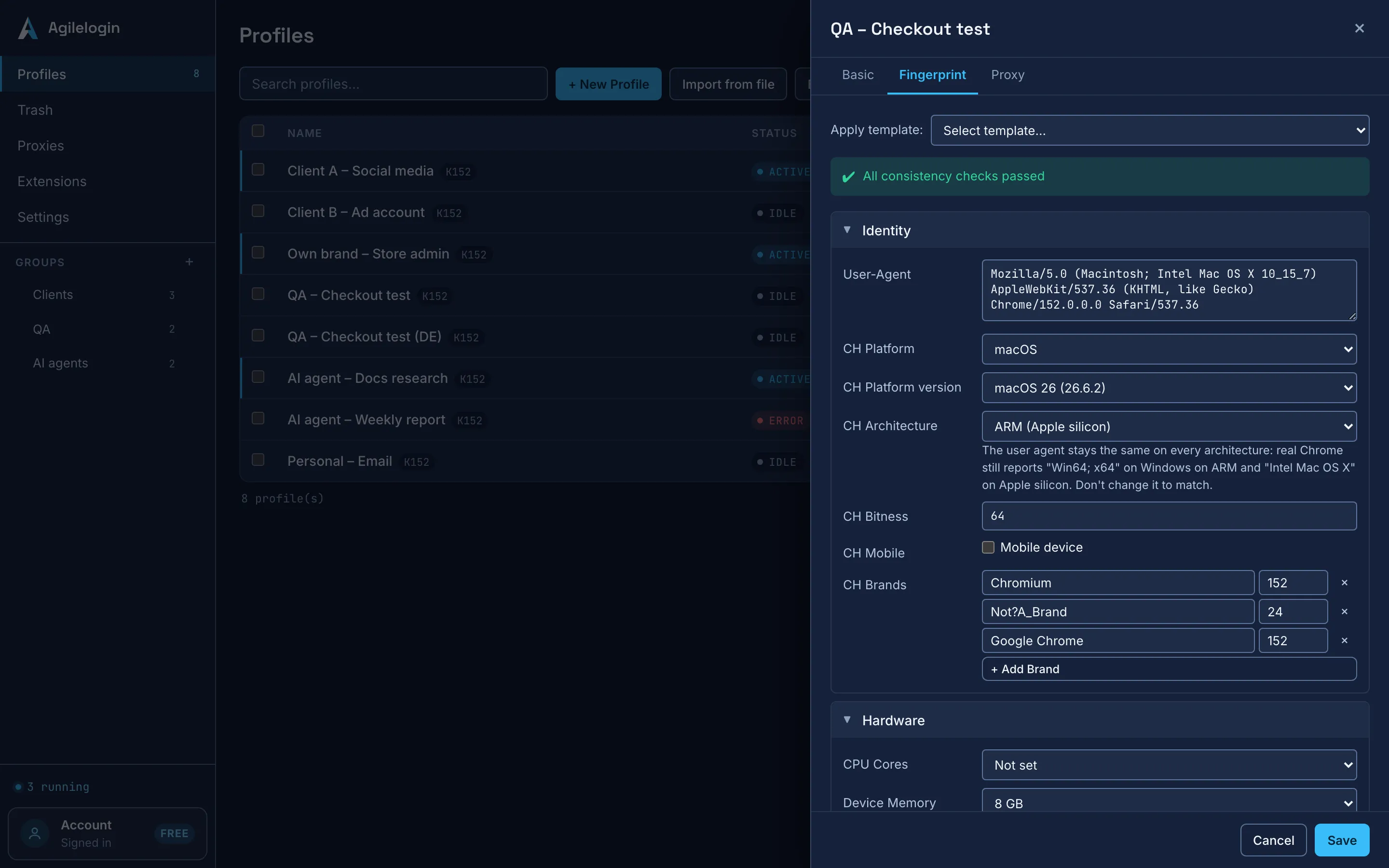
The device settings editor is where a Profile's device settings are kept: the user agent and its Client Hints, screen and hardware figures, time zone and languages, canvas and audio settings, the font list, media devices, the WebRTC mode and a geolocation. The Polychrome kernel reads them once at launch, and the Profile reports its own saved settings, separate from every other Profile. They describe a device; they do not decide what any website makes of it.
Eight sections, two templates, one set of checks.
Identity, Hardware, Region, Noise Fingerprints, Fonts, Media Devices, WebRTC and Geolocation. Each one maps to what a page can read through the browser's own APIs, so you edit the value a site would see, not an abstraction of it.
Start from a Windows 11 / Chrome or a macOS / Chrome template matched to the kernel's Chrome version, then change what you need. The template fills the user agent and Client Hints to agree with the kernel you run.
With a proxy bound, the time zone, languages and geolocation can be derived from the proxy's exit country, and the geolocation is given a city-scale accuracy rather than a metre-level one a desktop could not have.
Before you save, the editor lists errors, warnings and notes: a time zone that does not fit the proxy's country, macOS-only fonts on a Windows identity, a CPU and memory pair that rarely occurs together, a WebGL vendor that conflicts with its renderer, coordinates far from the proxy's exit, or a user-agent version that does not match the kernel. Each entry says what to change.
The checks keep a Profile from contradicting itself. Everything beyond that stays with the operator.
| Subject | Agilelogin boundary | Operator action |
|---|---|---|
| A fingerprint that passes every check | Internally consistent, and consistent with the proxy it was checked against | Decide which websites and accounts the Profile is used with, under their terms. |
| Saving with errors | Allowed, but the kernel discards a section it considers invalid, and that section then shows this computer's own value | Fix the listed errors, or accept that this computer's value shows for that section. |
| A proxy whose exit has not been checked | Region and geolocation checks cannot run against it | Run a health check on the Proxies page, then re-open the editor. |
The same four steps for a new Profile or an existing one.
Pick the Windows 11 / Chrome or macOS / Chrome template. It sets the user agent, Client Hints, screen, hardware, fonts and media devices to a coherent desktop.
With a checked proxy bound, let the editor derive the time zone, languages and geolocation from its exit country.
Work through the errors first, then the warnings. Each one names the section to change.
The configuration reaches the kernel over the launch channel, not command-line flags, and holds for the whole session.
What the editor does not do in this release.
Not in this release. The kernel accepts Windows and macOS identities, and the editor marks a mobile user agent as an error so it is not saved by mistake.
Modern Chrome sends a reduced user agent and answers detail requests through Client Hints: brands, platform version, architecture and bitness. The editor fills them from the template and checks that the brands match the kernel's version, because a site can compare the two.
No. The checks find contradictions between the settings and the proxy. Whether a website accepts a visitor depends on that site's own rules, your account history and your network, none of which the editor can see.
Read how a Profile keeps its state, then open the editor from any Profile in the app.